Every feature, explained
A deep dive into what PowerDoze can do for your PC.
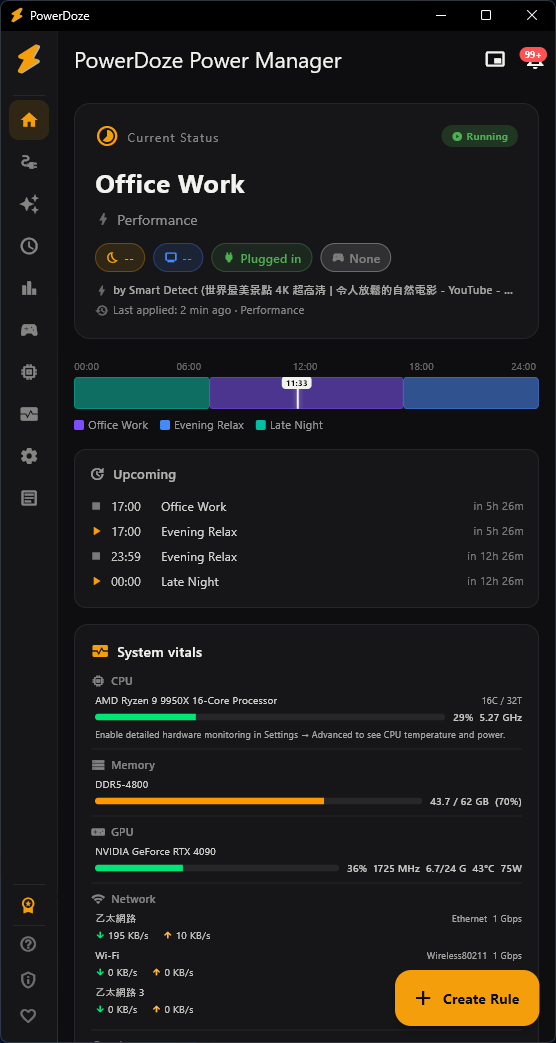
Scheduled sleep rules
Create time-based rules that control when your PC goes to sleep. Each rule defines a time window and a sleep timeout. PowerDoze evaluates rules every minute and applies the matching one.
- Set different timeouts for work hours, evening, and late night
- Filter by day of week (e.g., weekdays only, weekends only)
- Link a Power Mode to each rule for full automation
- Rules are evaluated by priority — first match wins
- Free: up to 3 rules / Pro: unlimited
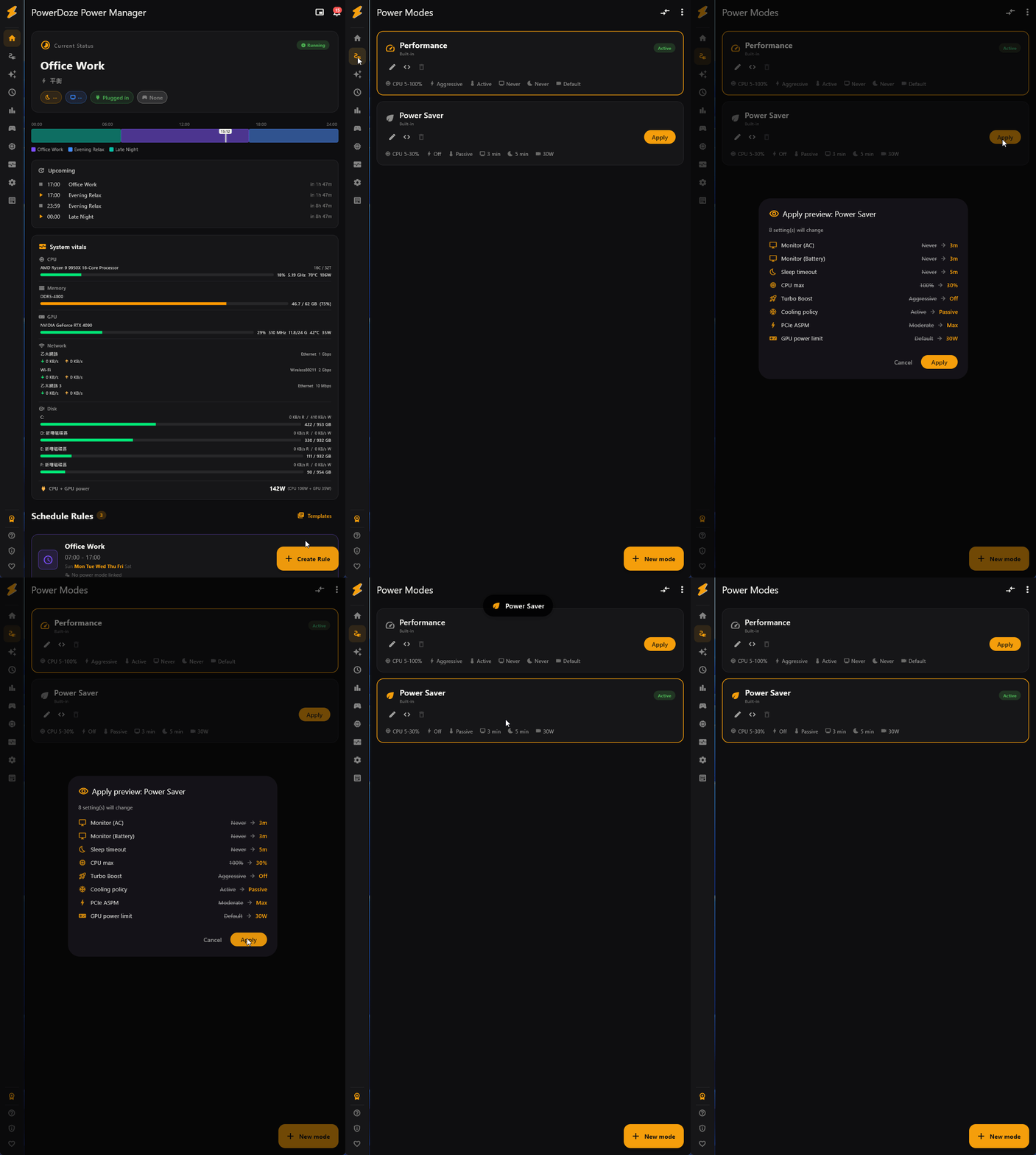
One-click power modes
Power Modes bundle multiple system settings into a single profile you can switch with one click. Each mode controls:
- Windows power scheme (Balanced, High Performance, Power Saver, or custom GUID)
- CPU min/max percentage and boost mode
- Cooling policy (active vs. passive)
- Screen timeout (AC and DC separately)
- PCIe ASPM link state power management
- NVIDIA GPU power limit (if NVIDIA driver is available)
- Free: 2 modes / Pro: unlimited
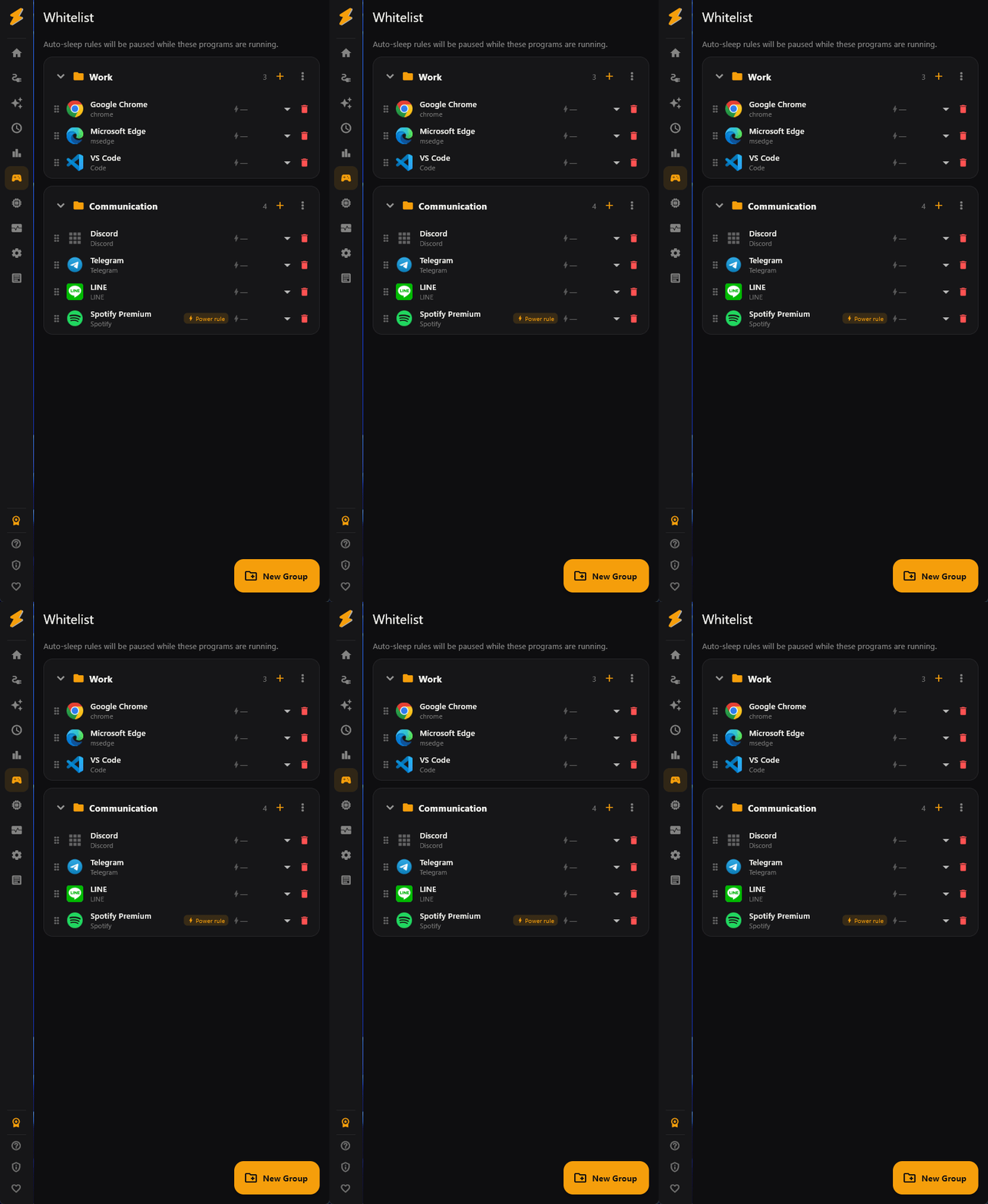
App whitelist
Prevent your PC from sleeping when specific apps are running. Perfect for downloads, rendering, long-running tasks, or any process that shouldn't be interrupted.
- Organize apps into groups (e.g., "Games", "Work", "Downloads")
- Scan running processes or installed apps to add quickly
- Drag-and-drop to reorder between groups
- Icons auto-extracted from executables
- Pro: at the top right of the Whitelist page there is an icon button. Hover over it to see "Add Current App". Use the app you want to add for a few seconds, then switch back to PowerDoze and press the button. The app you were just using is added to your first group. If you have no groups yet, a "Default Group" is created. If you see "Couldn't detect the current app", you have usually not switched to another app since PowerDoze opened. Switch to it, use it for a few seconds, then come back and press the button again.
Meeting detection
While a meeting app such as Teams or Zoom is in front, your PC won’t go to sleep on its own. Once you switch to another app or close the meeting app, your usual sleep settings apply again.
- Find it on the Smart Detection page, in the “Meeting detection” card. It’s on by default; the switch is at the top right of the card.
- The built-in meeting apps are free: Microsoft Teams (classic and new), Zoom, Cisco Webex, Slack, and Discord.
- Meeting detection matches the app’s process name, so a meeting in full screen or in a window both count. Meetings in a browser tab, like Google Meet, can’t be detected this way. Add your browser to the Whitelist instead.
- Pro: under “Apps you added”, press “Add App” to add your own meeting app, or turn off any app in “Built-in meeting apps”. If Pro expires, the built-in apps are still detected. The apps you added and the ones you turned off are kept and marked “Paused”, and come back once you have Pro again.
- In version 2.3.1, the version on this website’s download page, meeting detection is still a Pro feature. 2.4.0 comes to the Microsoft Store first.
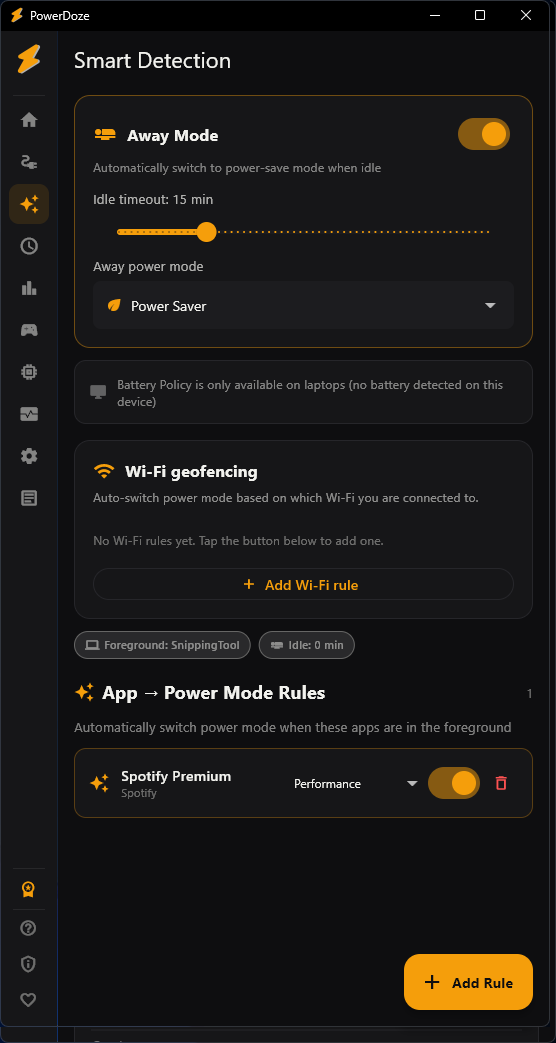
Away mode
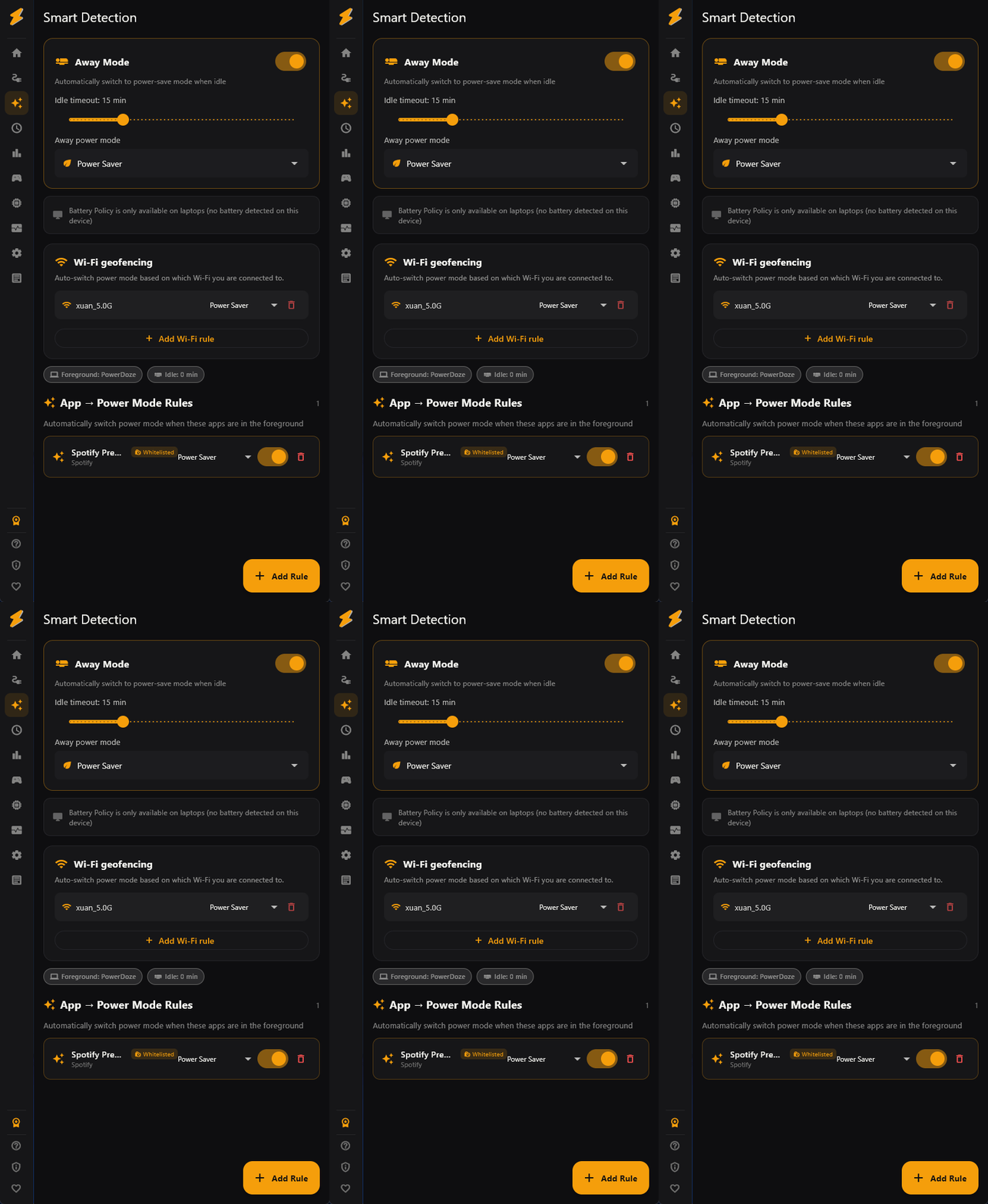
When you stop using your PC for a configurable number of minutes, PowerDoze automatically switches to an eco-friendly power mode. When you return, it restores your previous settings.
- Adjustable idle timeout (1–60 minutes)
- Choose which power mode to switch to when away
- Restores your previous mode the moment you return
- Uses Windows idle detection (keyboard + mouse activity)
- Won't dim or lock while a fullscreen app or meeting is in front
App foreground auto-switch
Automatically switch to a specific power mode when a particular app is in the foreground. When you switch away from that app, the previous mode is restored.
- Map any process to a power mode (e.g., Premiere Pro → Performance)
- Meeting detection itself is free from version 2.4.0. See Meeting detection above
- Add your own meeting apps, or turn off built-in ones (Pro)
- Higher priority than schedule rules — foreground always wins
Wi-Fi geofencing
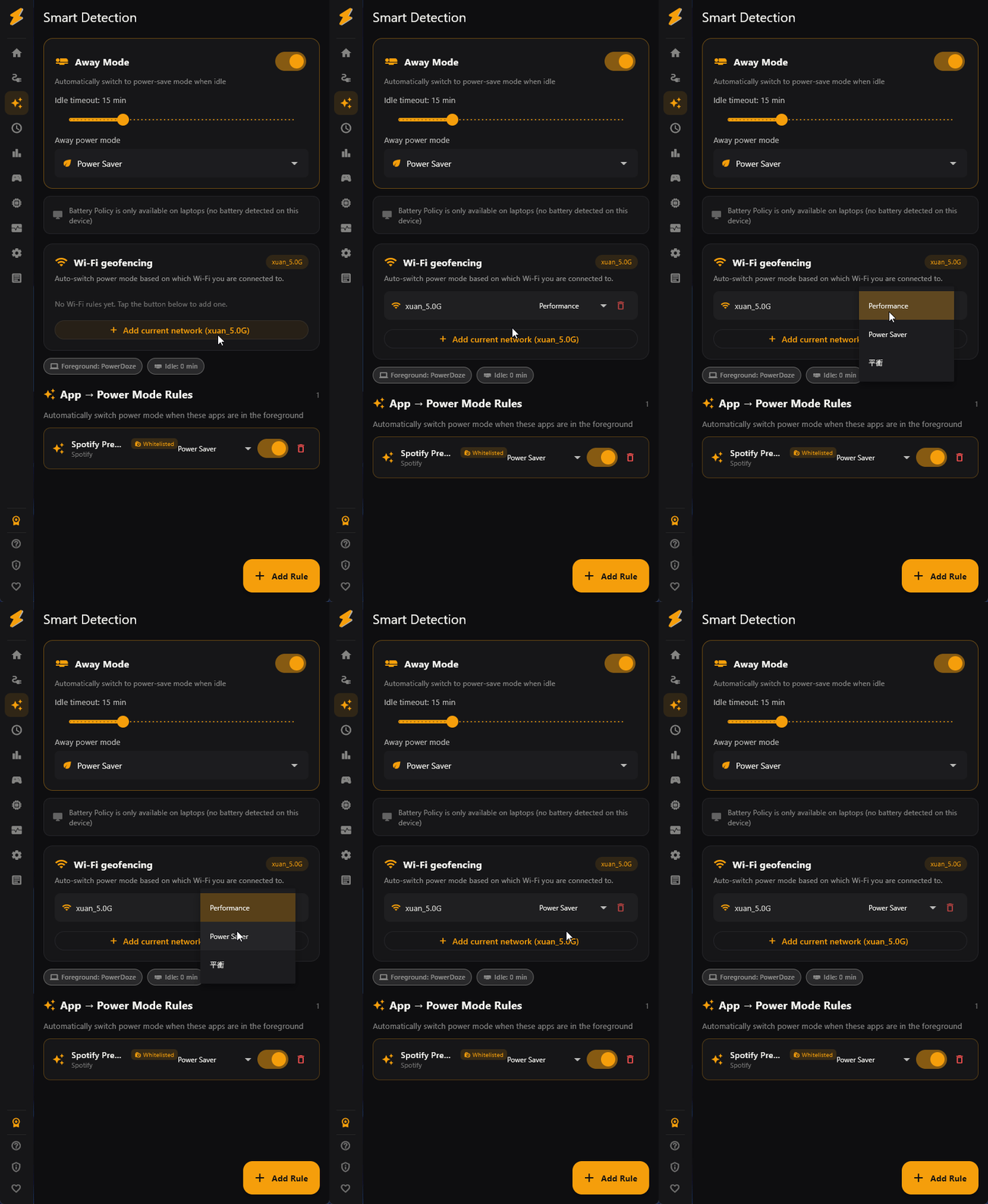
Automatically switch power modes based on which Wi-Fi network you're connected to. Acts as a simple location-aware trigger without GPS.
- Map Wi-Fi SSIDs to power modes (e.g., "Office-5G" → Balanced)
- Automatically detects current SSID
- Useful for "at work" vs. "at home" vs. "at coffee shop" profiles
- Checks periodically in the background
Hardware monitor
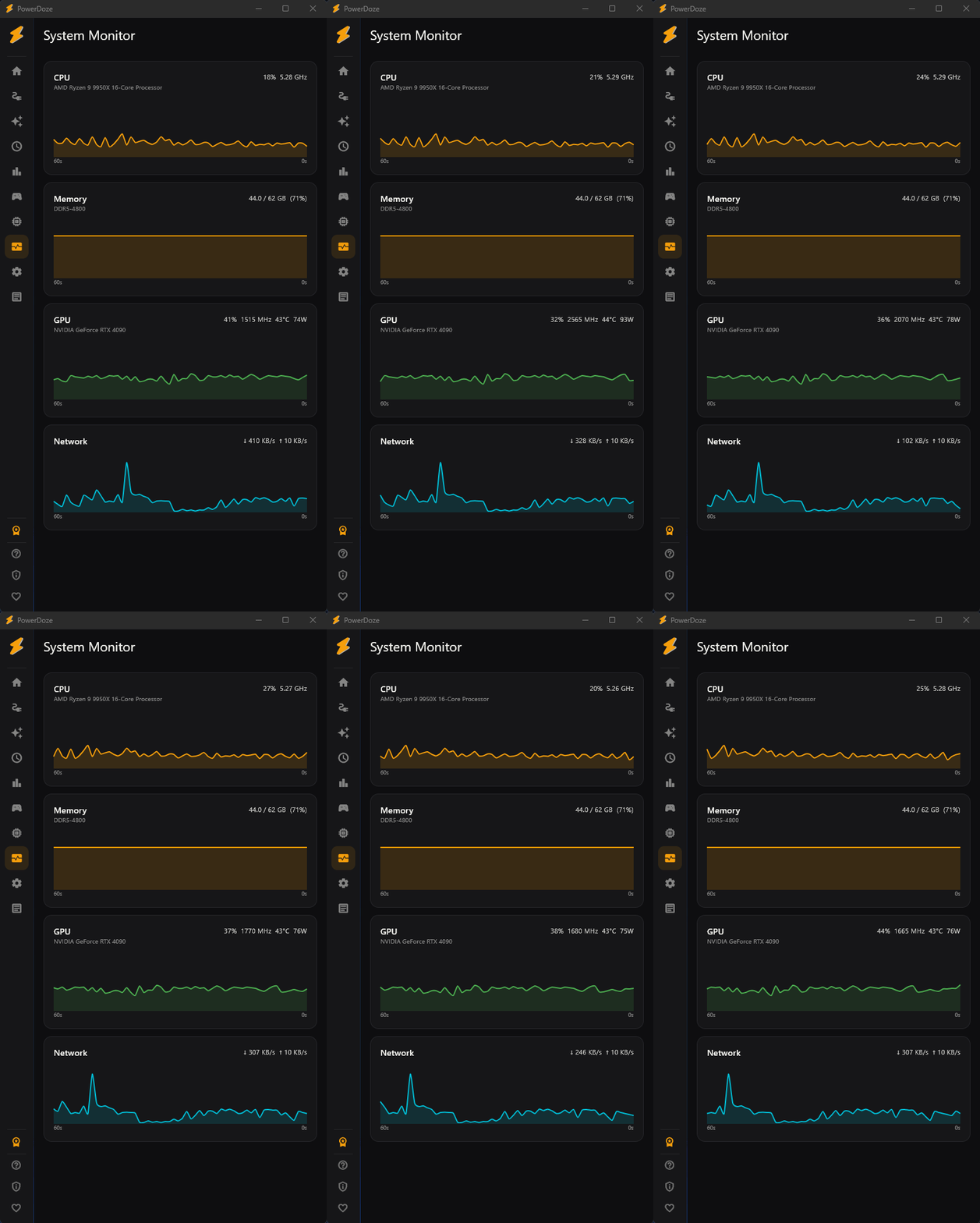
A real-time system dashboard with CPU, RAM, network, temperature, and FPS readings. Available as a full screen or a compact floating overlay.
- CPU usage, frequency, and temperature
- RAM usage and available memory
- Network upload/download speed
- FPS counter for DirectX games
- Mini Mode: a compact floating panel that stays on top
- Power consumption tracking and session statistics
Smart tasks
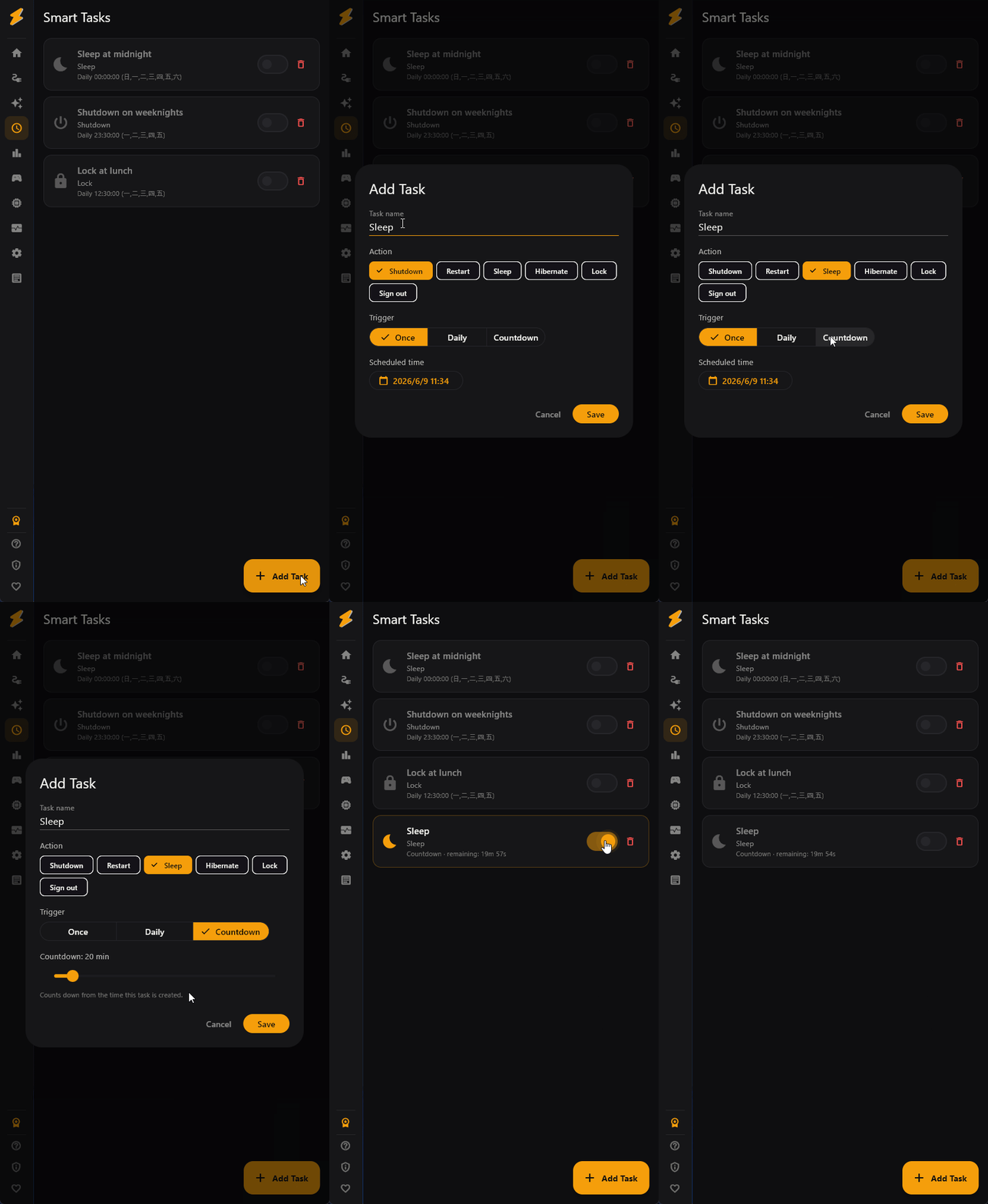
Schedule automated system actions like shutdown, restart, sleep, or lock at a specific time or after a countdown. Useful for overnight tasks or maintenance windows.
- Actions: Shutdown, Restart, Sleep, Hibernate, Lock, Sign Out
- Triggers: specific time (once/daily), countdown timer
- Pre-execution warning notification (30 seconds before)
- Enable/disable individual tasks without deleting them
Analytics & energy report
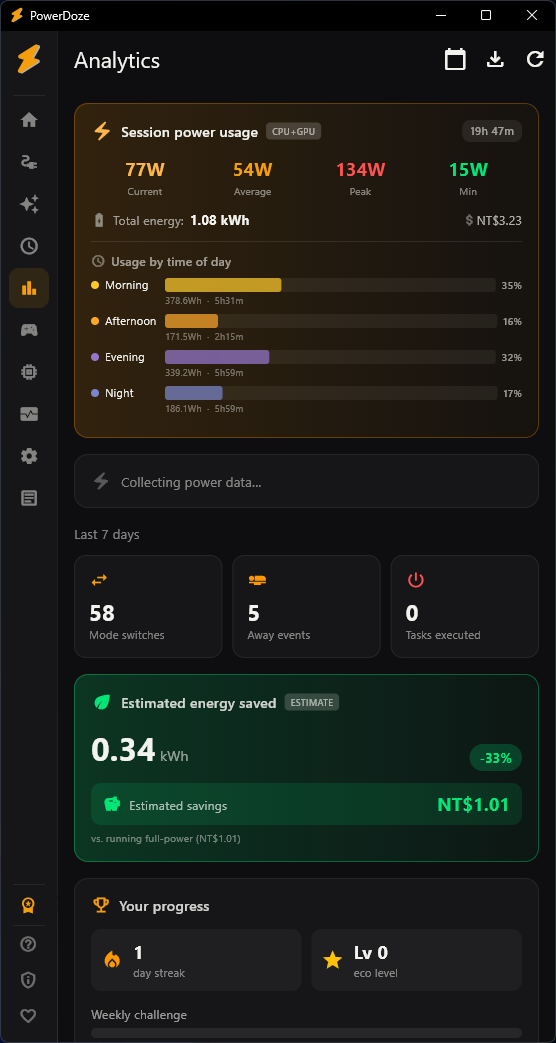
Track your power usage over time, see which modes you use most, and estimate your energy savings. Includes an achievement system to gamify your power management habits.
- Power history chart (7/14/30 day views)
- Mode usage breakdown and time distribution
- Estimated kWh saved and CO2 reduction
- Electricity cost estimation (multiple currencies and pricing tiers)
- Achievement badges for power-saving milestones
- Export to CSV for further analysis
Settings export & import
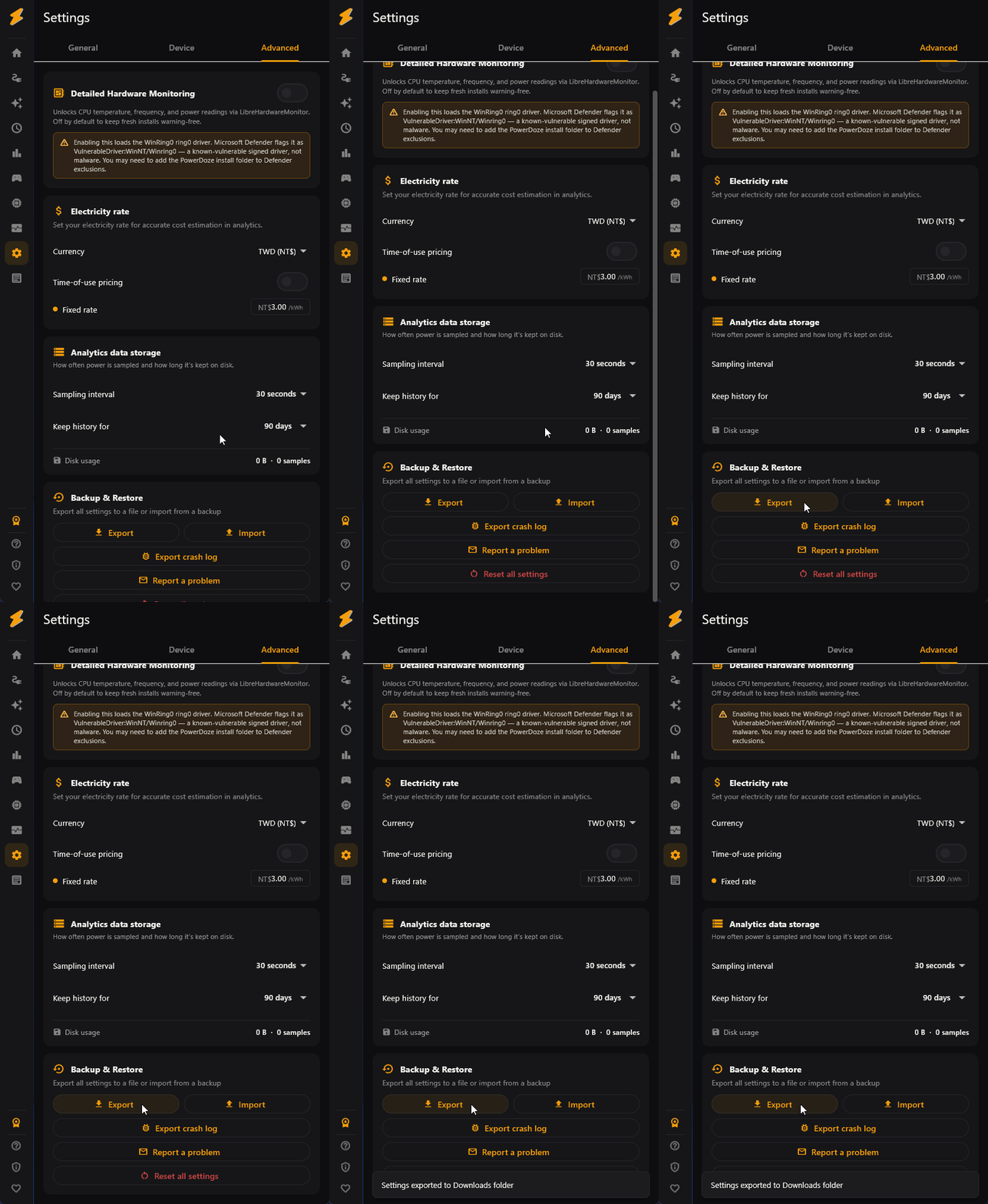
Back up your entire configuration (rules, modes, whitelist, smart detect settings) to a single file. Restore on the same PC or transfer to a new machine.
- One-click export of all settings
- Import restores everything — rules, modes, whitelist, policies
- Useful for PC migration, fresh Windows installs, or sharing configs
- Automatic backup snapshots before every save operation
Process EcoQoS (Efficiency Mode)
Toggle Windows' native Efficiency Mode on any running process from a searchable list — the same power-throttling flag as Task Manager's leaf icon, but applied to every process sharing a name at once.
- Uses Windows' own SetProcessInformation API — the identical mechanism behind Task Manager's Efficiency Mode
- Matches by process name, so multi-instance apps are covered in one toggle — not one PID at a time
- Bundled with per-process CPU priority and GPU preference (iGPU/dGPU) in the same list
- Best for background apps that sit mostly idle but spike now and then (sync clients, chat apps, indexers) — not for active rendering or encoding
- Applies to currently running processes; like Windows' own toggle, it resets when the app restarts
Mini mode
Shows a small panel with live numbers about your PC. The panel stays on top of other windows, so you can watch it while you work or play.
- At the top right of the Home screen there is an icon button. Hover over it to see "Mini mode", and click it to open the panel. Double-click the panel to go back to the main window.
- In Settings, on the General tab, the "Floating panel settings" card lets you choose which numbers to show, such as "CPU usage", "RAM usage" or "Network", and set the panel’s width and height.
- You can lock the panel so mouse clicks pass through it to the window behind, such as a game. To unlock it, press Ctrl + Alt + L while mini mode is open, or right-click the PowerDoze icon in the system tray and choose "Unlock floating panel".
Switch when the CPU is busy
Switches to the power mode you pick while your PC is working hard, such as exporting video or gaming. When the PC calms down, your usual mode comes back.
- Set it up on the Smart Detection page, in the "Switch when the CPU is busy" card. It is off until you turn it on.
- You set three things: how much CPU use counts as busy (shown as "Counts as busy at …% CPU or more"), how long it has to stay busy ("Busy for at least"), and which power mode to use ("While busy, switch to").
- Switching back works the same way: you set how low CPU use has to drop to count as calm ("Counts as calm at …% CPU or less") and how long it has to stay calm ("Calm for at least"). The busy number is always higher than the calm number, and the gap between them keeps the mode from switching back and forth.
- The card shows your current CPU usage and whether your PC counts as busy right now. If the mode you picked is deleted later, the card asks you to choose another one.
Battery policy
Switches your power mode based on the battery level. For example, when the battery drops below 20%, it can switch to a power-saving mode.
- Only for PCs with a battery, such as laptops. On a PC without one, the page shows a note instead of the settings.
- On the Smart Detection page, first turn on the switch at the top right of the "Battery Policy" card. The settings below only appear after that. "Low battery threshold" is the level that counts as low, anywhere from 5% to 50%. "Low battery mode" is the power mode used below that level.
- It only applies while running on battery. The low battery mode ends when you plug in, or when the battery rises 5 percentage points above your threshold. That 5-point gap keeps the mode from switching back and forth.
- You can also turn on "Switch to high mode when plugged in". Then "On AC power mode" appears, where you pick the mode to use while plugged in. If you leave it off, PowerDoze goes back to your normal schedule when you plug in.
Lid close
Chooses what a laptop does when you close its lid. You can set one action for when it is plugged in and another for when it runs on battery.
- Find it in Settings, on the Advanced tab, in the "Lid close" card.
- For "Plugged in" and for "Battery", choose Do nothing, Sleep, Hibernate or Shutdown. The same area has a "Power button" card with the same four choices.
- The lid settings only appear on a PC that has a lid, such as a laptop.
- Without Pro, you can see these settings but not change them. The card says "Changing these needs Pro. This shows what Windows is using right now." If any of them differs from the Windows default, a "Restore Windows defaults" button appears, and you can use it without Pro. (Since 2.4.0)
Desktop Icon Layout Guard
When a DisplayPort or HDMI monitor turns off, Windows can scramble your desktop icons. PowerDoze remembers how your icons were arranged and puts them back.
- Find it on the Displays page, in the "Desktop Icon Layout Guard" card.
- Press "Save current layout" to remember how your icons are arranged right now. The card then shows how many icons are remembered. Until any icons are remembered, "Restore now" is grayed out.
- Turn on the switch at the top right of the card, and PowerDoze puts the icons back by itself after the monitor comes back and the icons have moved. You can also press "Restore now" at any time.
- Without Pro: if you already use this feature (the switch is on, or a layout is saved), the card shows "Desktop icon guard is paused". Automatic restore stops, but your settings and saved layout are kept, and "Restore now" still works. If you never set it up, you only see the Pro upgrade card. (Since 2.4.0)
Rule groups
Put your sleep rules into named groups, such as Work, Gaming or Personal, so a long list stays easy to read.
- When you create or edit a rule, pick a group in "Group", or choose "New Group" to make one.
- Once you have at least one group, rules on the Home screen are listed under their group’s name, with a count next to it. Click a group’s name to fold or unfold it.
- Use the menu on a group to "Rename Group" or "Delete Group". Deleting a group does not delete its rules. They move to "Ungrouped".
- Groups only change how the list is arranged. They don't change when a rule runs.
Electricity rate
Enter what you pay for electricity, and the Analytics page can estimate what your PC costs to run and how much you saved.
- Find it in Settings, on the Advanced tab, in the "Electricity rate" card.
- Choose your currency: TWD, USD, EUR, JPY, KRW, CNY or GBP.
- Use one "Fixed rate", or turn on "Time-of-use pricing" and set a "Peak rate", an "Off-peak rate" and your own "Peak hours".
- With "Time-of-use pricing" on, you can also turn on "Separate summer and non-summer rates" and enter rates for "Summer (Jun 1 – Sep 30)" and "Non-summer (Oct 1 – May 31)" separately. (Since 2.4.0)
- With "Time-of-use pricing" on, there are two more switches, "Weekends use off-peak rate" and "Holidays use off-peak rate". Both start out on. On those days, the whole day uses the "Off-peak rate".
- With holidays on, a "Holidays" list appears. It starts with Taiwan’s national holidays. Lunar New Year, Dragon Boat Festival and Mid-Autumn Festival fall on different dates each year, so the list only has rough dates for them. Each date also includes the year, so after the year changes you need to add the new year’s holidays yourself. Check the list against your calendar, press "Add" to add dates, and remove any that are wrong.
- The results are estimates, so how close they are depends on the rate you enter.